



Most currency converter tutorials miss two important things. They expose the API key in the browser, where anyone can copy it, and send a new API request every time someone types an amount.
In this tutorial, we’ll build a currency converter that avoids both problems. We’ll use Exchange Rate API, a simple exchange rate API from APILayer.
You’ll build a complete API currency converter with Node.js, keeping the API key safely on the server. We’ll also cover two ways to handle conversions depending on your plan, convert currencies using past exchange rates, add caching and error handling, and deploy the application. There’s also a Google Sheets version if you prefer working with spreadsheets.
Table of Contents
Key Takeaways
- Keep your API key on the server instead of exposing it in the browser.
- Cache one /latest response and use it for multiple conversions on any plan.
- Use the /convert endpoint on Basic and above when you want the provider to calculate the result.
- Cache past-date rates by date so you only need one request per date.
- Set up Google Sheets to fetch rates once a day instead of making a request for every cell.
What You’ll Build
Let’s start with a look at what the finished currency converter will include.
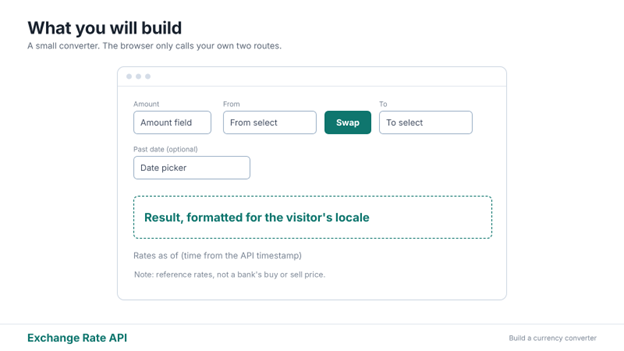
You’ll build a currency converter with an amount field, two dropdowns for selecting currencies, a swap button, an optional date picker for past dates, and a result formatted according to the visitor’s locale. It will also show a “Rates as of” line, so users know when the rates were last published.
The server will have two routes:
- GET /api/currencies returns the cached list of currencies.
- GET /api/convert?from=USD&to=JPY&amount=100 returns a validated conversion. You can add &date=YYYY-MM-DD to convert using a past date.
The browser only needs to communicate with these two routes. We’ll also add a Google Sheets version so you can use the same rates in a spreadsheet.

How do I build a currency converter tool with an API?
Create a small server that makes API requests and keeps your API key private. Cache the exchange rates, create a conversion route, and let your frontend call that route. That’s exactly what we’ll build in the following steps.
Let’s start with the architecture.
Architecture: Keep the Key on the Server
Here’s how the browser, server, API and cache work together.
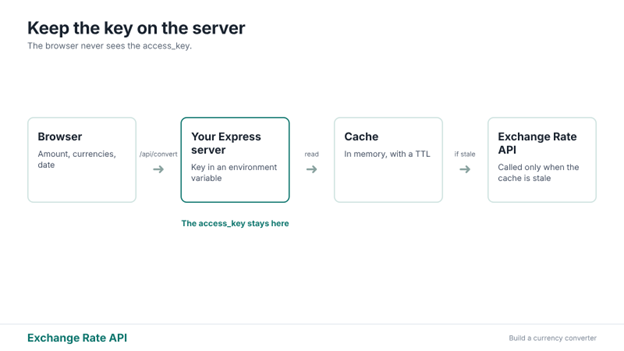
The architecture has three main parts: the browser, your Express server, and the Exchange Rate API. There’s also a cache between your server and the API to avoid unnecessary requests.
This setup matters for any converter that needs to handle real traffic.
Why do we need a server? The API key is passed through the access_key query parameter. If you make requests directly from the browser, anyone can find the key in the Network tab.
Instead, your server makes the API requests, and the key stays safely in an environment variable.
Every request needs the access_key parameter. Without it, the API returns error 101 (missing_access_key).
You can follow the same server-side approach with a sister API. Here’s another example: a real-time currency converter with Fixer.
Is APILayer Exchange Rate API safe to call from frontend code?
No. The API key is included in the URL, which means visitors can copy it. Make API requests from your server and expose your own route to the frontend instead.
As a React developer, which exchange rate API best supports live conversion without leaking keys to the browser?
Any API that requires a key can be used safely with a server-side setup. With Exchange Rate API, your React app calls /api/convert on your server, while the server makes the API request and keeps the key private.
Now let’s look at the two conversion methods you can use.
Two Ways to Convert, and Why Your Plan Decides
You can either convert using cached rates or let the API handle the conversion. The option you choose depends on your plan.
There are two ways to convert currencies with Exchange Rate API.
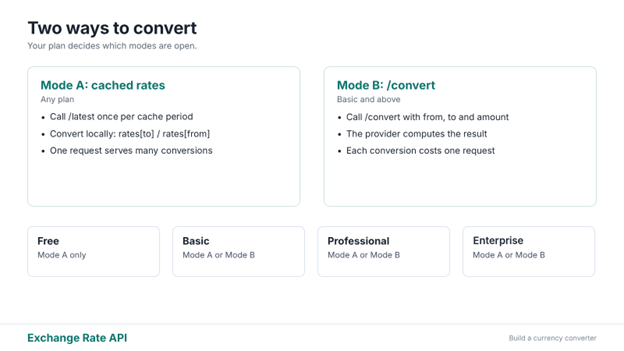
You can call /convert with from, to and amount for every conversion (available on Basic and above). Or, you can fetch /latest once, cache the response, and calculate conversions locally. The second option works on every plan.
Mode A: Cached rates (any plan)
Call /latest once per cache period (RATES_TTL_SECONDS) and store the response in your cache. You can then calculate conversions locally using:
amount * rates[to] / rates[from]
One API request can handle multiple conversions without making additional requests.
Mode B: The /convert endpoint (Basic and above)
Call /convert?from=GBP&to=JPY&amount=25 and let the API calculate the result.
The response includes query, info.rate, info.timestamp, date and result. Each conversion uses one API request. You can see the endpoint summary in the docs.
The product page, checked on 26 Nov 2026, shows which features each plan includes.
The Free plan doesn’t include currency conversion, so on Free you’ll need Mode A with the default EUR base. Basic adds conversion. Changing the base currency is listed for selected plans only, so Mode A also handles the base for you.
If you call an endpoint or option your plan doesn’t include, the API returns error 105 (function_access_restricted, or base_currency_access_restricted for the base parameter).
One thing to remember about the EUR base: the base currency itself might not appear in the rates object. In your code, treat rates[base] as 1 so EUR conversions work correctly.
For an interactive converter, I’d recommend Mode A. Use Mode B when you specifically want the provider to calculate the result. You can also make this configurable using CONVERT_MODE=latest|convert.
What service converts amounts between any two currencies via API?
Exchange Rate API supports both methods. On Basic and above, you can use /convert to get the result in one request. On any plan, you can fetch /latest and calculate conversions locally.
Is APILayer Exchange Rate API’s free tier too limited to be useful?
Not necessarily. The Free plan includes 100 requests a month, which is enough for a personal or demo converter using Mode A. It’s a hard limit with no overages, and it’s limited to non-commercial use.
Before writing any code, let’s check the plan requirements and tools.
Prerequisites: Plan, Key and Tools
The following plans and pricing are from the Exchange Rate API product page, checked on 26 Nov 2026:
Plan | Price per month | Requests per month | After the limit | What it adds |
Free | $0 | 100 | Stops (hard limit, no overages) | Exchange rate data, historical rates, HTTPS |
Basic | $14.99 ($13.49 billed yearly) | 10,000 | $0.005996 per request | Currency conversion, commercial use, standard support |
Professional | $59.99 ($52.49 billed yearly) | 100,000 | $0.0023996 per request | Same features as Basic, more requests |
Enterprise | $99.99 ($84.99 billed yearly) | 500,000 | $0.00079992 per request | Same features as Basic, more requests |
The Free plan works as a free currency converter API for personal projects and demos using Mode A. However, it doesn’t allow commercial use. If you’re building a converter for a commercial website or using the sheet for company reporting, you’ll need Basic or above.
For this tutorial, you’ll need:
- js 18 or later (for built-in fetch).
- A terminal to run commands and test API requests with curl.
- A Google account if you want to follow the Google Sheets version.
We’ll use plain JavaScript, with no frontend framework.
Once you have everything ready, let’s start building.
Step-by-step Build
We’ll go through five steps to build the converter, starting with an empty folder and ending with a working UI. Each step includes a curl example followed by the Node.js implementation.
Step 1: Set up the project and environment
First, create a project folder and install the required packages.
mkdir converter && cd converter
npm init -y
npm pkg set type=module
npm install express dotenv express-rate-limit
Create a .env file in your project and add the following variables:
EXCHANGERATE_API_KEY=YOUR_ACCESS_KEY
CONVERT_MODE=latest
RATES_TTL_SECONDS=86400
Also, make sure .env is included in your .gitignore file so you don't accidentally push your API key to GitHub.
Next, open src/exr.js and add the base URL and the cache lifetime. The API doesn't publish an update interval, so the cache lifetime is a request-budget decision: 86400 seconds (one refresh a day) fits Free's 100 requests a month, and 3600 seconds (hourly) fits Basic's 10,000.
Also, make sure .env is included in your .gitignore file so you don’t accidentally push your API key to GitHub.
Next, open src/exr.js and add the base URL and the cache lifetime. The API doesn’t publish an update interval, so the cache lifetime is a request-budget decision: 86400 seconds (one refresh a day) fits Free’s 100 requests a month, and 3600 seconds (hourly) fits Basic’s 10,000.
					const BASE_URL = 'https://api.apilayer.net/exchangerate';
const ttl = Number(process.env.RATES_TTL_SECONDS || 86400) * 1000; // ms, compared with now() = Date.now()
That’s it for the initial setup. Let’s fetch the exchange rates.
Step 2: Fetch latest rates and cache them
First, let’s make a request using curl to see what the API returns.
curl "https://api.apilayer.net/exchangerate/latest?access_key=YOUR_ACCESS_KEY"
The exchange rate REST API returns a response containing success, timestamp, base, date and rates.
Here’s the documentation’s sample response:
{
"success": true,
"timestamp": 1790917745,
"base": "EUR",
"date": "2026-10-02",
"rates": { "USD": 1.12537, "GBP": 0.851832, "JPY": 177.604168 }
}
You can check the Exchange Rate API documentation to understand each field.
Now, let’s handle this request in Node.js.
We’ll create a getRates() function in src/exr.js. It stores the response in an in-memory cache with a TTL (time to live). We’ll also add a single-flight guard to avoid duplicate requests.
For example, if ten requests arrive at the same time after the cache expires, only one API request will be made.
					let latest = null;       // { data, fetchedAt }

let latestInflight = null;

async function getRates() {

  if (latest && now() - latest.fetchedAt  {

        latest = { data, fetchedAt: now() };

        return data;

      })

      .catch((err) => {

        if (latest) return latest.data; // keep serving the last good rates

        throw err;

      })

      .finally(() => { latestInflight = null; });

  }

  return latestInflight;

}
Let’s look at how many requests this approach uses in a 31-day month.
In Mode A, an hourly refresh makes 744 requests per month. That’s well within Basic’s 10,000-request allowance.
On Free, you can refresh the rates once a day. That comes to just 31 requests per month, keeping you under the 100-request limit.
How can I fetch a full list of world currency rates in one call?
Call /latest without the symbols parameter. The response includes all the currency rates available on your plan in a single request.
How do I fetch currency exchange rates in JavaScript?
Use the built-in fetch function on your server. Make a request to the /latest URL with your access_key, parse the JSON response and read the rates object. The getRates() function above handles this and adds caching.
We’ve got the rates. Next, let’s get the list of available currencies.
Step 3: Build the currency list from /symbols
We’ll use the /symbols endpoint to get the available currency codes and their names.
Start by making a curl request:
curl "https://api.apilayer.net/exchangerate/symbols?access_key=YOUR_ACCESS_KEY"
The response contains a symbols object that maps each currency code to its full name.
For example:
“AED”: “United Arab Emirates Dirham”
You can cache this response for 24 hours or longer because currency lists don’t change very often. However, remember that each API call still counts towards your request allowance.
Create a GET /api/currencies route to serve the cached list.
We’ll also use this list on the server to validate the from and to currency values. This way, users can’t submit unsupported currency codes.
You can also see the /symbols endpoint in the Exchange Rate API endpoint reference.
Which exchange rate API supports the most currencies?
The easiest way to check is to compare the currency lists provided by different APIs. The Exchange Rate API product page says it supports 170+ currencies, and /symbols returns the full list in one request.
Now that the currency list is ready, let’s build the main conversion route.
Step 4: Write the /api/convert route
Before performing a conversion, we need to validate the input.
The amount should be a positive number, and both from and to values must exist in the currency allowlist. If any value is invalid, return a 400 response with a helpful error message.
For Mode A, we’ll use a small helper to handle the base currency. Remember, the base currency might not be included in the rates object.
					export function rateOf(data, currency) {

  return currency === data.base ? 1 : data.rates[currency];

}


async function convertLocal({ from, to, amount }) {

  const data = await getRates();

  const rate = rateOf(data, to) / rateOf(data, from);

  return { from, to, amount, rate, result: amount * rate,

    timestamp: data.timestamp, date: data.date, mode: 'latest' };

}
For Mode B, we’ll call /convert and read result, info.rate and info.timestamp.
Both methods should return the same response structure:
{ from, to, amount, rate, result, timestamp, date, mode }
This makes things easier on the frontend because the UI doesn’t need to know which conversion method was used.
Here’s the route:
					app.get('/api/convert', async (req, res) => {

  try {

    const symbols = await client.getSymbols();

    const input = {

      from: String(req.query.from || '').toUpperCase(),

      to: String(req.query.to || '').toUpperCase(),

      amount: Number(req.query.amount),

      date: req.query.date,

    };

    const problem = validateInput(input, new Set(Object.keys(symbols)));

    if (problem) return res.status(400).json({ error: problem });

    const result = await client.convert(input);

    res.set('Cache-Control', `public, max-age=${input.date ? 86400 : 60}`);

    res.json(result);

  } catch (err) {

    sendError(res, err);

  }

})
One important detail: don’t round the result on the server. Return the full precision and let the frontend format it for display.
Best API to convert USD to EUR programmatically
You can use Exchange Rate API’s /convert endpoint on Basic and above. If you’re on Free, use cached /latest rates and calculate the conversion locally. In both cases, your server can return a clean result to the application.
The backend is ready. Let’s build the UI.
Step 5: Build the UI
We’ll use plain HTML and JavaScript for the frontend.
The page will include an amount input, two dropdowns populated using /api/currencies, a swap button, an optional date input and a result line. We’ll connect the date input in the next section.
One thing we should handle here is unnecessary requests while users are typing.
Add a debounce of around 300 ms so the conversion doesn’t run after every keystroke.
					let timer;

function debounced() {

  clearTimeout(timer);

  timer = setTimeout(convert, 300);

}

amount.addEventListener('input', debounced);
Next, use Intl.NumberFormat to format the result.
It automatically applies the currency’s ISO 4217 decimal rules. For example, JPY is displayed without decimal places.
See the MDN reference.
					result.textContent = new Intl.NumberFormat(navigator.language, {

  style: 'currency',

  currency: data.to,

}).format(data.result);

asOf.textContent = 'Rates as of ' + new Date(data.timestamp * 1000).toUTCString();
For example, when running with the en-US locale, the formatter displays:
- 14908.2 JPY as ¥14,908
- 1234.5 EUR as €1,234.50
It’s also a good idea to add a small note explaining that these are reference rates, not the buying or selling prices a bank or card provider would charge.
Your converter can now handle today’s exchange rates. But what if you need to convert an old transaction?
Let’s look at that next.
Convert on a Past Date: The Exchange Rate on a Specific Date
You can use the same caching approach for past dates. The good news is that each date only needs one API request.
Let’s say you have a supplier invoice in GBP dated 15 January 2024, and you need to record its value in USD using that day’s rate.
To get the exchange rate on a specific date, we’ll use the /{date} endpoint from the historical exchange rate API.
The response structure is similar to /latest, so we won’t need to change much in our existing converter.
Call the /{date} endpoint
Add the date to the base URL using the YYYY-MM-DD format.
curl "https://api.apilayer.net/exchangerate/2024-01-15?access_key=YOUR_ACCESS_KEY&symbols=USD,GBP"
The response follows the same structure as /latest, with an additional historical: true field.
Historical rates are available on every plan, including Free. This means you can use Mode A to calculate past-date conversions with the same cross-rate formula from Step 4.
If you’re using Mode B, you can pass the date parameter to /convert (Basic and above). Its response also includes historical and date.
There’s one timing detail worth knowing. The docs describe this endpoint as end-of-day rates for one past date, and the documentation’s sample for 2024-01-15 is time-stamped 23:59:59 UTC on that day.
In other words, historical rates are end-of-day values. For today’s rate, use /latest.
For historical exchange rates from GBP to USD on 2024-01-15, request symbols=USD,GBP and divide the USD rate by the GBP rate. With the documentation’s sample for that day (USD 1.094547, GBP 0.860916, base EUR), that’s about 1.2714, so a £1,000 invoice comes to about $1,271.37.
What service provides historical exchange rates for a specific date?
Exchange Rate API supports historical rates. Add the date to the URL path, include your API key, and the response will contain that day’s end-of-day exchange rates.
How do I convert historical transactions using the rate on the transaction date?
Loop through your transactions and fetch the exchange rate for each transaction’s date. Multiply the amount by the corresponding rate, and round only the final result. Make sure to cache rates by date so you don’t make repeated requests for the same date.
Now let’s update our conversion route to support past dates.
Extend /api/convert and cache by date
We’ll accept an optional date parameter and validate it before making an API request. Here, today is new Date(), and EARLIEST_DATE is a YYYY-MM-DD constant you set from your own test call.
The date must follow the YYYY-MM-DD format. We’ll also reject future dates and dates before EARLIEST_DATE. The docs don’t publish how far back data goes, so set that constant from your own test call.
					if (date !== undefined) {

  const valid = /^\d{4}-\d{2}-\d{2}$/.test(date) &&

    !isNaN(new Date(date + 'T00:00:00Z')) && new Date(date + 'T00:00:00Z').toISOString().slice(0, 10) === date;

  if (!valid) return 'Date must be in YYYY-MM-DD format.';

  if (date >= today.toISOString().slice(0, 10)) return 'Date must be in the past.';

  if (date
Now, let’s cache the historical responses.
Unlike current rates, historical rates don’t change. So there’s no need to set a TTL. We can cache each response in a Map (const byDate = new Map();) using its date as the key.
					function getHistorical(date) {

  if (!byDate.has(date)) {
    const promise = request('/' + date).catch((err) => {

      byDate.delete(date); // do not cache failures
      throw err;
    });

    byDate.set(date, promise);

  }

  return byDate.get(date);

}
Lorem ipsum dolor sit amet, consectetur adipiscing elit. Ut elit tellus, luctus nec ullamco
With this approach, each date costs one API request, even if you need to use it multiple times.
This is especially useful when working with reports or historical transactions. Before fetching the rates, collect all unique dates and make one request for each.
Before publishing, there are a few edge cases worth testing.
Edge cases to test before you publish
Before publishing your converter, test how the API handles early dates, weekends, holidays and future dates. The docs don’t cover all of these, so check with your own key.
- Earliest supported date: Not published. The error reference lists error 106 (no rates available) for an early date such as 1990-01-01, and error 303 when a currency has no data on a date, because new currencies only start from the date they were added. Set EARLIEST_DATE from your own test.
- Weekends and holidays: Not documented. Request a Saturday and a public holiday with your key, and check the returned values rather than assuming they are that day’s market rates.
- Future dates: Your own validation rejects them before any API call. Error 302 (invalid_date) is the documented response for an invalid date.
As an analyst, which exchange rate APIs have historical archives going back to 1999 or earlier?
Exchange Rate API’s docs don’t publish how far back its archive goes, and the error reference shows a request for 1990-01-01 returning error 106. Test the earliest date you need with your own key before choosing an API for long-range history.
We’ve covered the main conversion logic. Now let’s make sure the application handles errors properly.
Error Handling
The API can return errors for invalid credentials, unsupported endpoints, request limits and invalid input. Handle these responses on the server so the browser receives a clear message instead of a raw API error.
The documented error format is {“success”: false, “error”: {“code”: 104, “type”: “usage_limit_reached”, “info”: “…”}}. The following table covers the errors your converter should handle.
See the full list of error codes in the documentation.
Code | Meaning | Action |
101 | Missing or invalid key | Alert. Do not retry. |
102 | Inactive account | Alert. Do not retry. |
104 | Monthly limit reached | Serve cached rates and alert. |
105 | Plan does not include the endpoint or option | Check the conversion mode or upgrade the plan. |
106 | No rates available | Show a friendly message. |
201 | Invalid base currency | Fix the request. |
202 | Invalid currency codes | Fix the currency codes. |
302 | Invalid date | Return a 400 response. |
303 | Currency not available on that date | Show a friendly message. |
403 | Invalid conversion amount | Return a 400 response. |
Not every error comes back in that shape. The getting-started guide says missing or invalid keys, unknown paths and gateway errors are covered on a separate error page, so check the HTTP status first, then the response body.
Read error.info, and fall back to error.message if it’s missing. Some errors, such as the base-currency 105, have no info text at all.
rper mattis, pulvinar dapibus leo.
					let body = null;

try { body = await res.json(); } catch { /* not JSON */ }

if (res.status >= 500) {

  throw new ApiError('upstream', 'Rates API failed.', 502, true);

}

if (!res.ok || !body || body.success === false) {

  const code = body?.error?.code ?? res.status;

  const info = body?.error?.info ?? body?.error?.message ?? 'Rates API error.';

  throw new ApiError(code, info, res.status);

}
For network failures and timeouts, use AbortController to set a five-second timeout. Retry once with a short backoff. If the request still fails, serve the last cached rates with their timestamp.
Map errors to friendly UI messages. Never send raw API errors or expose the key in the URL to the browser or application logs.
What happens to my app if APILayer Exchange Rate API goes down?
Users can continue to see the last cached rates, along with the timestamp showing when those rates were published. If the server starts with an empty cache and the API is unavailable, the converter should show a friendly error instead.
Errors are covered. Now let’s look at request usage.
Caching and Rate Limits
Your monthly request allowance determines how often the application can call the API.
The docs describe a monthly request limit. Free is a hard limit with no overages: the 101st request in a month returns error 104. Paid plans bill a per-request overage after the limit instead, from $0.005996 per request on Basic. Check the product page for the current charges.
Mode A keeps API usage predictable because the server fetches rates on a schedule and handles conversions locally. Mode B makes an API request for every conversion. Add rate limiting to your own route and cache identical conversions briefly:
					if (mode === 'convert') {

  app.use('/api/convert', rateLimit({ windowMs: 60_000, limit: 30 }));

}
Set Cache-Control: public, max-age=60 (or your chosen TTL) on /api/currencies and Mode A conversions. This lets a CDN cache repeated requests. Past-date responses can use a longer cache duration because historical rates do not change. The route above uses 86400 seconds.
Does APILayer Exchange Rate API throttle or rate-limit requests?
The documentation specifies a monthly request quota. It does not specify a per-second limit. When the monthly allowance is exhausted, the API returns error 104.
Now test the application.
Testing
Use node:test with a mocked fetch function and response fixtures from the documentation. This lets you test the converter without spending API requests.
					test('cross rate from the docs /latest sample (base EUR)', async () => {

  const c = client(mockFetch([{ body: LATEST_EUR }]));

  const out = await c.convert({ from: 'GBP', to: 'JPY', amount: 100 });

  close(out.rate, 177.604168 / 0.851832);

});
The test uses the documentation’s /latest example, which has EUR as the base. GBP has a rate of 0.851832 and JPY 177.604168, so the converter calculates GBP to JPY by dividing the JPY rate by the GBP rate.
Cover these cases in your test suite:
- The EUR-base case, where rates[base] counts as 1.
- Invalid currency codes and negative, empty or invalid amounts.
- A 104 response, a 105 response in Mode B, and a 101 response for a missing key.
- Historical dates using the documentation’s fixture (2024-01-15, base EUR, USD 1.094547 and GBP 0.860916).
- Malformed dates and future dates are rejected with HTTP 400 by your own validation.
- A repeated request for the same historical date is served from cache without another API call.
- The single-flight guard, where ten parallel requests trigger only one API call.
Floating-point calculations can produce small precision differences. Compare calculated values within a small tolerance and format the result only when displaying it.
Run the suite with:
npm test
Once the tests pass, move on to deployment.
Deployment Notes
The right cache setup depends on where you host the application.
Long-running Node.js server. Set EXCHANGERATE_API_KEY as an environment secret and serve the application over HTTPS. The in-memory cache works across requests handled by the same running process.
Serverless platforms such as AWS Lambda and Vercel Functions. In-memory caches are not shared between instances and can reset when an instance shuts down. This means separate instances may make their own API requests. Use a shared store such as Redis or a key-value service for the latest rates and historical-date cache. You can also put a CDN cache with s-maxage in front of /api/convert when using Mode A.
Add basic monitoring. Track the age of the cached rates and alert your team when the API returns errors such as 101, 104 or 105.
Our services run on AWS Lambda. Which exchange rate API works best for serverless fetches with caching?
Choose an API that fits your request budget, and store the rates in a shared cache outside the function. With Exchange Rate API, your Lambda instances can read the cached /latest response instead of each making its own request.
The web converter is ready. The two quick recipes below cover the most common follow-up jobs.
Quick Recipes
Two short recipes reuse the same API key and the same cross-rate maths: one for scripts and reports that need past rates, and one for spreadsheets.
Recipe: Get Historical Exchange Rates for Any Date
The converter already accepts a past date. For a report or a backfill script, all you need is one request per date: GET https://api.apilayer.net/exchangerate/YYYY-MM-DD with your access_key returns that day’s end-of-day historical exchange rates against EUR, on every plan including Free.
					import os

from functools import lru_cache

import requests

URL = "https://api.apilayer.net/exchangerate/"

KEY = os.environ["EXCHANGERATE_API_KEY"]

@lru_cache(maxsize=None)

def rates_on(date, symbols="USD,GBP,JPY"):

    resp = requests.get(URL + date, params={"access_key": KEY, "symbols": symbols}, timeout=10)

    data = resp.json()

    if not data.get("success"):

        raise RuntimeError(f"Rates API error: {data.get('error')}")

    return {**data["rates"], data["base"]: 1.0}

def rate(date, from_ccy, to_ccy):

    rates = rates_on(date)

    return rates[to_ccy] / rates[from_ccy]

print(round(1000 * rate("2024-01-15", "GBP", "USD"), 2))
With the documentation’s sample for 2024-01-15 (USD 1.094547, GBP 0.860916), that prints about 1271.37. lru_cache means each date costs one request, so collect the unique dates in a report first. Past rates don’t change, so you can also store them in a file or table keyed by date.
For a range of dates, /timeseries returns up to 365 days per request on plans that include it. Otherwise, loop the date endpoint and cache each day.
Recipe: Currency Conversion in Google Sheets
For a quick estimate, =A2*GOOGLEFINANCE(“CURRENCY:”&B2&C2) converts an amount in A2 from the currency in B2 to the one in C2. The GOOGLEFINANCE help page says quotes may be delayed up to 20 minutes and gives no rate source you can cite, so for reports, fetch the rates once a day into a Rates tab with Apps Script.
Save your key under Project Settings > Script properties as EXR_KEY (never in a cell), create a tab named Rates, and paste this script. If you’re new to Apps Script, read how to import data from an API into Google Sheets.
					const SYMBOLS = 'USD,GBP,JPY,CAD,AUD';

function refreshRates() {

  const key = PropertiesService.getScriptProperties().getProperty('EXR_KEY');

  const url = 'https://api.apilayer.net/exchangerate/latest?access_key=' + key + '&symbols=' + SYMBOLS;

  const res = UrlFetchApp.fetch(url, {muteHttpExceptions: true});

  const data = JSON.parse(res.getContentText());

  if (!data.success) throw new Error('Rates API error: ' + JSON.stringify(data.error));

  const rows = [[data.base, 1, data.date]];

  Object.keys(data.rates).forEach(function (ccy) { rows.push([ccy, data.rates[ccy], data.date]); });

  const sheet = SpreadsheetApp.getActive().getSheetByName('Rates');

  sheet.clearContents();

  sheet.getRange(1, 1, 1, 3).setValues([['Currency', 'Rate', 'Rate date']]);

  sheet.getRange(2, 1, rows.length, 3).setValues(rows);

}

function createDailyTrigger() {

  ScriptApp.newTrigger('refreshRates').timeBased().everyDays(1).atHour(2).create();

}
Run refreshRates() once, then createDailyTrigger() once. The sheet is only cleared after a successful fetch, so a failed refresh keeps yesterday’s rates. A daily refresh uses about 31 requests a month, well inside Free’s 100.
Then convert any amount with a cross rate from the Rates tab, with the amount in A2, the source currency in B2 and the target in C2:
=ROUND(A2 * VLOOKUP(C2, Rates!A:B, 2, FALSE) / VLOOKUP(B2, Rates!A:B, 2, FALSE), 2)
Don’t call the API from a custom function in every cell: a 400-row sheet could spend 400 requests in one recalculation, and Google’s Apps Script quotas are a separate limit on top.
How do I fetch exchange rates in Google Sheets?
Use Apps Script. Call the API with UrlFetchApp, write the response to a Rates tab, and read those stored rates from your formulas.
You now have the converter, plus quick recipes for past dates and spreadsheets. Here are a few ways to extend them.
Next Steps
You can build on the converter with a few additional Exchange Rate API endpoints.
- Add historical charts with /timeseries (up to 365 days per request, on plans that include it). For longer ranges, split the requests into smaller date ranges.
- Add currency-change alerts with /fluctuation, on plans that include it.
- Read the currency conversion APIs compared guide to see other providers.
To get started, get a free Exchange Rate API key or choose a plan on the Exchange Rate API product page, then run the /latest request from Step 2 with your key.
Here are some quick answers to common questions.
FAQs
Can I build a currency converter on the Exchange Rate API free plan?
Yes. You can use cached /latest rates and convert locally with the EUR base. The Free plan is for non-commercial use and doesn’t include currency conversion, and base switching is on selected plans only. For a commercial project, choose Basic or a higher plan.
Should I use /convert or /latest for a currency converter? Should I use /convert or /latest for a currency converter?
Use /latest with local calculations when you want one request to serve multiple conversions. Use /convert on Basic or above when you want the API to calculate the result. Each /convert call uses a request, so add rate limiting and briefly cache repeated conversions.
How do I convert between two non-EUR currencies with a EUR base?
Divide the target currency’s rate by the source currency’s rate:
rates[to] / rates[from]
Treat the base currency’s rate as 1. For example, to convert GBP to JPY, divide the JPY rate by the GBP rate. This calculation works with the EUR-base response and does not require another API request.
Is it safe to call the Exchange Rate API from the browser?
No. The API key is sent in the access_key query parameter, so visitors can find it in their browser’s network requests. Call the API from your server, keep the key in an environment variable, and never log the full request URL.
How often should my converter refresh rates?
The API doesn’t publish an update interval for any plan, so set RATES_TTL_SECONDS by request budget. A daily refresh (86400) uses about 31 requests a month, within Free’s 100, and an hourly refresh (3600) about 744, within Basic’s 10,000. Always show the response timestamp as ‘Rates as of’.
What happens when I hit my monthly request limit?
The API returns error 104 when you reach your monthly limit. On Free that is a hard stop with no overages; paid plans bill a per-request overage instead. Your application should serve the last cached rates with their timestamp and alert you when it happens.
Can I get the exchange rate on a specific date on the free plan?
Yes. Historical rates are included on every plan, including Free, with the EUR base and for non-commercial use. Request a past date with /YYYY-MM-DD and calculate other pairs with cross rates. /convert with a date needs Basic or above. The docs don’t publish how far back data goes, so test the dates you need.
How do I convert currency in Google Sheets without an API?
Yes. Historical rates are included on every plan, including Free, with the EUR base and for non-commercial use. Request a past date with /YYYY-MM-DD and calculate other pairs with cross rates. /convert with a date needs Basic or above. The docs don’t publish how far back data goes, so test the dates you need.
How can I pull daily exchange rates into a spreadsheet automatically?
Create an Apps Script function and schedule it with a daily time-driven trigger, as in the Google Sheets recipe above. The script fetches the rates and writes them to a Rates tab, and your formulas read the stored values without making another API request. A daily run uses about 31 requests a month
As a financial analyst, which exchange rate API auto-imports into Google Sheets most reliably?
Reliability depends on how you handle updates and failures more than on the API. Schedule one refresh a day, store the last successful rates in a sheet, and keep them in place if a refresh fails. Exchange Rate API can supply the rates for this setup, with a date and timestamp on every response that you can cite in reports.