


Parsing user agent strings yourself is a nightmare. They’re inconsistent, they change constantly, and your regex will break the moment a new browser version ships. That’s exactly the kind of problem an API should solve.
This guide walks you through using the Userstack API to detect browsers, operating systems, and device types from user agent strings. You’ll get working code examples in Node.js and Python, a real API response breakdown, and practical use cases you can implement today.
Table of Contents
Key Takeaways
- User agent strings are messy and constantly changing, making DIY regex parsers a maintenance burden that breaks with every browser update.
- Userstack is a REST API that returns structured JSON with browser, OS, device, and crawler data from any user agent string.
- Integration takes minutes with a simple GET request, and working code examples in Node.js and Python are copy-paste ready.
- Practical applications include server-side analytics enrichment, conditional content delivery by device type, and device-segmented A/B testing.
- The free tier lets you test the API immediately, with paid plans starting at $9.99/month for 50,000 lookups and crawler detection.
Why User Agent Parsing Is Harder Than You Think
A user agent string looks something like this:
Mozilla/5.0 (Windows NT 11.0; Win64; x64) AppleWebKit/537.36 (KHTML, like Gecko) Chrome/125.0.0.0 Safari/537.36
That single string encodes the browser, OS, device type, and rendering engine. Extracting those values accurately means writing regex patterns for every known browser and OS combination. Then maintaining them as new versions ship weekly.
The problem has gotten worse. Google has been progressively reducing the information in Chrome’s user agent string through its User-Agent Reduction initiative. Minor version numbers are frozen, OS version details are stripped, and browsers like Firefox and Safari have followed with similar changes. If your parsing logic depends on specific version substrings, it is already broken.
Client Hints (the Sec-CH-UA header family) are the intended replacement, but Safari doesn’t support them and older browsers ignore them. Server-side applications processing logs from mixed traffic still need to parse traditional UA strings alongside Client Hints. That means two parsing systems instead of one.
This is where a dedicated parsing service earns its keep. You offload the detection problem to an API that keeps its database current.
What Userstack API Does and How It Works

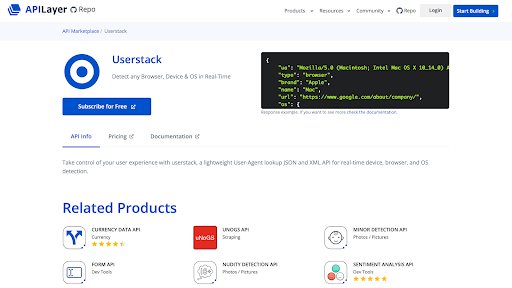
Userstack is a REST API that takes a raw user agent string and returns structured JSON (or XML) with parsed data about the browser, operating system, device, and crawler status. It is part of the APILayer API suite, which hosts dozens of data APIs under a single platform.
The core mechanic is simple. You send a GET request with two parameters: your API access key and the user agent string you want to parse. The API returns a JSON object broken into clearly labeled sections: browser, os, device, and crawler.
Userstack’s detection database is maintained by in-house specialists and updated multiple times per week. This covers new browser versions, device releases, and OS updates without any work on your end. It also identifies crawlers and bots, which is useful if you need to filter non-human traffic from your analytics.
The API supports single lookups and bulk lookups (up to 100 user agent strings per request on paid plans). All requests are encrypted with 256-bit SSL. Let’s set it up.
Getting Started: API Key and First Request
Step 1: Sign up for an API key.
Go to the Userstack product page on APILayer and create a free account. After signing up, you’ll find your unique 32-character API access key in your account dashboard.
Step 2: Make your first request with cURL.
The base endpoint for user agent detection is:
http://api.userstack.com/detect?access_key=YOUR_ACCESS_KEY&ua=USER_AGENT_STRING
Here’s a cURL example using a Chrome on macOS user agent string:
curl "http://api.userstack.com/detect?access_key=YOUR_ACCESS_KEY&ua=Mozilla%2F5.0%20(Macintosh%3B%20Intel%20Mac%20OS%20X%2010_14_0)%20AppleWebKit%2F537.36%20(KHTML%2C%20like%20Gecko)%20Chrome%2F71.0.3578.98%20Safari%2F537.36"
Make sure to URL-encode the user agent string. Spaces become %20, semicolons become %3B, and forward slashes become %2F.
Step 3: Read the JSON response.
Here is the full JSON response returned by the API for the request above:
Lorem ipsum dolor sit amet, consectetur adipiscing elit. Ut elit tellus, luctus nec ullamcorper mattis, pulvinar dapibus leo.
					{
  "ua": "Mozilla/5.0 (Macintosh; Intel Mac OS X 10_14_0) AppleWebKit/537.36 (KHTML, like Gecko) Chrome/71.0.3578.98 Safari/537.36",
  "type": "browser",
  "brand": "Apple",
  "name": "Mac",
  "url": "https://www.google.com/about/company/",
  "os": {
    "name": "macOS 10.14 Mojave",
    "code": "macos_10_14",
    "url": "https://en.wikipedia.org/wiki/MacOS_Mojave",
    "family": "macOS",
    "family_code": "macos",
    "family_vendor": "Apple Inc.",
    "icon": "https://assets.userstack.com/icons/os/macosx.png",
    "icon_large": "https://assets.userstack.com/icons/os/macosx_big.png"
  },
  "device": {
    "is_mobile_device": false,
    "type": "desktop",
    "brand": "Apple",
    "brand_code": "apple",
    "brand_url": "http://www.apple.com/",
    "name": "Mac"
  },
  "browser": {
    "name": "Chrome",
    "version": "71.0.3578.98",
    "version_major": "71",
    "engine": "WebKit/Blink"
  },
  "crawler": {
    "is_crawler": false,
    "category": null,
    "last_seen": null
  }
}
The response is divided into four clear sections. The os object gives you the operating system name, version, and family. The browser object includes the browser name, full version, major version, and rendering engine. The device object tells you whether it’s mobile, tablet, or desktop, along with the brand and model. The crawler object flags bots and includes crawler category and last seen timestamp (available on the Basic plan and above).
Now let’s put this into real code.
Working Code Example: Node.js
This example uses the built-in fetch API (available in Node.js 18+). No external dependencies required.
					const API_KEY = "YOUR_ACCESS_KEY";
const USER_AGENT =
  "Mozilla/5.0 (Windows NT 10.0; Win64; x64) AppleWebKit/537.36 (KHTML, like Gecko) Chrome/125.0.0.0 Safari/537.36";

async function detectUserAgent(ua) {
  const endpoint = `http://api.userstack.com/detect?access_key=${API_KEY}&ua=${encodeURIComponent(ua)}`;

  try {
    const response = await fetch(endpoint);
    const data = await response.json();

    if (data.error) {
      console.error(`API Error: ${data.error.type} - ${data.error.info}`);
      return;
    }

    console.log(`Browser: ${data.browser.name} ${data.browser.version}`);
    console.log(`OS: ${data.os.name}`);
    console.log(`Device Type: ${data.device.type}`);
    console.log(`Is Mobile: ${data.device.is_mobile_device}`);
    console.log(`Is Crawler: ${data.crawler.is_crawler}`);
  } catch (error) {
    console.error("Request failed:", error.message);
  }
}

detectUserAgent(USER_AGENT);
Run this with node detect.js after replacing YOUR_ACCESS_KEY with your actual key.
Notice the error handling. The Userstack API returns a JSON error object (not an HTTP error status) when something goes wrong, so check for data.error explicitly. Common error codes include 101 for invalid API keys and 104 for exceeding your monthly request limit. The full error code list is in the Userstack documentation.
Working Code Example: Python
This example uses the requests library, which you can install with pip install requests.
					import requests
from urllib.parse import quote

API_KEY = "YOUR_ACCESS_KEY"
USER_AGENT = (
    "Mozilla/5.0 (iPhone; CPU iPhone OS 17_5 like Mac OS X) "
    "AppleWebKit/605.1.15 (KHTML, like Gecko) Version/17.5 "
    "Mobile/15E148 Safari/604.1"
)

def detect_user_agent(ua):
    endpoint = "http://api.userstack.com/detect"
    params = {
        "access_key": API_KEY,
        "ua": ua
    }

    try:
        response = requests.get(endpoint, params=params)
        data = response.json()

        if "error" in data:
            print(f"API Error: {data['error']['type']} - {data['error']['info']}")
            return

        print(f"Browser: {data['browser']['name']} {data['browser']['version']}")
        print(f"OS: {data['os']['name']}")
        print(f"Device Type: {data['device']['type']}")
        print(f"Is Mobile: {data['device']['is_mobile_device']}")
        print(f"Is Crawler: {data['crawler']['is_crawler']}")

    except requests.exceptions.RequestException as e:
        print(f"Request failed: {e}")

detect_user_agent(USER_AGENT)
Run this with python detect.py. This example uses an iPhone user agent string, so you should see the device type returned as mobile and is_mobile_device as true. The requests library handles URL encoding automatically when you pass parameters through the params dictionary.
Both examples follow the same pattern: build the request, call the API, check for errors, extract the fields you need.
Real-World Use Cases
Enriching Server-Side Analytics
Client-side analytics tools get blocked by ad blockers on an estimated 25% to 40% of desktop traffic. Server logs capture every request, but raw logs give you user agent strings, not structured data.
Pipe your access log UA strings through the Userstack API and you get clean breakdowns by browser, OS, and device type. For high-volume logs, use the bulk lookup endpoint to process up to 100 user agents per request.
Conditional Content Delivery
Knowing the device type at the server level lets you make decisions before the page renders. Serve compressed images to mobile users. Redirect tablet users to a touch-optimized layout. Skip loading heavy JavaScript bundles for older browsers.
Here’s how this looks in an Express.js middleware:
					app.use(async (req, res, next) => {
  const ua = req.headers["user-agent"];
  const endpoint = `http://api.userstack.com/detect?access_key=${API_KEY}&ua=${encodeURIComponent(ua)}`;
  const response = await fetch(endpoint);
  const data = await response.json();

  req.deviceType = data.device?.type || "desktop";
  next();
});
Get Your Free Userstack API Key
Understand your users better with accurate user agent parsing and device detection. Built for developers who need reliable browser, OS, and device insights at scale.
Get Free API AccessFree monthly requests included
Downstream routes can then check req.deviceType to serve the right content. For production, add caching (Redis or in-memory) to avoid calling the API on every request for the same UA string. Most sites see only a few hundred unique user agent strings, so a simple cache eliminates redundant calls.
A/B Testing Segmented by Device
When you run A/B tests, aggregate results can hide device-specific differences. A checkout flow change might increase conversions on desktop by 12% but decrease them on mobile by 8%. Without device segmentation, you’d see a modest overall lift and ship a change that hurts mobile users.
Use the device.type field from Userstack to tag each user entering a test. Store the device type alongside the experiment assignment in your analytics database. At analysis time, filter results by device to catch these splits. You can also use browser.name and os.name to target experiments at specific browser or OS combinations.
API Tiers, Rate Limits, and Pricing
Userstack offers five plans. Here is what each includes, based on the current pricing page:
Plan | Monthly Lookups | Price/Month | Key Features |
Free | 100 | $0 | Device, browser, OS detection. HTTPS. |
Basic | 50,000 | $9.99 | Everything in Free, plus crawler detection. |
Business | 500,000 | $49.99 | Adds bulk lookups (up to 100 UAs per request). |
Business Pro | 2,000,000 | $99.99 | Full feature set, highest standard volume. |
Enterprise | Custom | Custom | Custom solutions, volume pricing. |
One thing to keep in mind: the free plan does not include crawler detection. If filtering bot traffic is part of your use case, you need the Basic plan or higher.
Caching and Rate Limit Best Practices
Regardless of your plan, avoid calling the API for the same user agent string repeatedly. User agent strings cluster heavily. A typical website might see thousands of requests per day, but only a few hundred unique UA strings.
Cache the parsed result keyed by the raw UA string. A JavaScript Map or Python dict works for single-server setups. For distributed systems, use Redis or Memcached with a TTL of 24 to 48 hours. This strategy can reduce actual API calls by 90% or more, making even the free tier viable for low-traffic testing. For guidance on production API patterns, see Building AI API Interfaces in 2025 on the APILayer blog.
Start Detecting Browsers and Devices Now
User agent parsing is one of those problems that looks simple until you maintain it in production. Userstack handles the detection logic, keeps its database current, and returns clean JSON you can plug into analytics pipelines, content delivery logic, or A/B testing workflows with minimal code.
Userstack’s free tier gives you 10,000 API requests per month, enough to test it in your project and see real results. Grab your API key here and start detecting browsers and devices in minutes: https://userstack.com/
Frequently Asked Questions
1. What is the Userstack API and how does it parse user agent strings?
Userstack is a REST API that accepts a raw user agent string and returns structured JSON containing the detected browser name and version, operating system, device type, and crawler status. It maintains its own detection database, updated multiple times per week, so you don’t need to write or maintain parsing logic yourself.
2. Can I use the Userstack API to detect mobile vs. desktop users?
Yes. The API response includes a device object with a type field that returns values like desktop, smartphone, or tablet. It also includes an is_mobile_device boolean, making it straightforward to branch your application logic based on device category.
3. How do I detect the browser and OS from a user agent string using an API?
Send a GET request to http://api.userstack.com/detect with your API key and the URL-encoded user agent string as parameters. The response JSON includes a browser object (with name, version, and engine) and an os object (with name, family, and family_vendor) that give you all the parsed details.
4. Does the Userstack API detect bots and web crawlers?
Yes, on the Basic plan ($9.99/month) and above. The API response includes a crawler object with an is_crawler boolean, a category field (identifying the type of crawler), and a last_seen timestamp. This is useful for filtering automated traffic from your analytics or blocking unwanted bots.
5. What programming languages work with the Userstack API?
Any language that can send HTTP GET requests works with Userstack. The official documentation includes code examples for PHP, Python, Node.js, jQuery, Go, and Ruby. Since the API returns standard JSON, integration is straightforward in any modern programming language or framework.
Recommended Resources: